 Log in
How can I create Iframes
The iframe customisation system allows you to configure and manage embedded views (iframes) for your stations and models.
How to Access
Go to: Administration → Iframe Configuration
You will find three tabs:
1. Model Templates
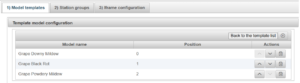
Use this tab to create and manage groups of model templates.
Create a Template Group
- Click the “+” icon (top right).
- Enter a name for your group (e.g. “Vine Models”).
- Click the ⚙️ (cogwheel) icon to configure the group.


Add Models to the Group
- Click the “+” icon.
- Add models one by one to the group (e.g. 3 vine-related models).
- Repeat until all desired models are added.
- Click “Back to the template list” to return.

2. Station Groups
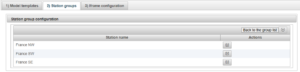
Use this tab to create and manage groups of stations.
Create a Station Group
- Click the “+” icon.
- Enter a name (e.g. “France”).
- Click the ⚙️ (cogwheel) icon to configure the group.
Add Stations
- Click the “+” icon.
- Add stations one by one (e.g. France NW, France SE, France SW).
- Click “Back to the template list” to return.

3. Iframe Configuration
Use this tab to create and configure iframes.
Create a New Iframe
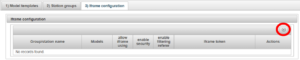
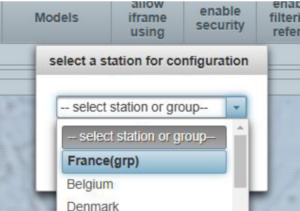
- Click the “+” icon.
- The groups you created earlier will appear (marked with “(grp)”).
- The new iframe will appear in the table.

Iframe Settings
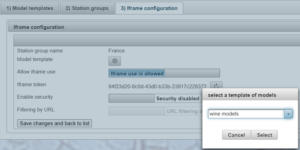
Click the ⚙️ (cogwheel) icon to configure your iframe.
Main Settings
- Model Template
Select the model group to use (e.g. Vine Models). - Allow Iframe Use
Enable or disable access to the iframe. - Iframe Token
A unique identifier for your iframe.
You can regenerate it at any time (this will invalidate the previous link).
Optional Security Settings
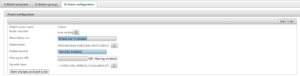
Enable Security
- By default, no security is applied.
- Anyone with the link can use the iframe.
- Enable this option to restrict access.
URL Filtering
- Once security is enabled, you can restrict access by domain.
- Click “+” to add one or more authorised domain names.
- The iframe will only work on these websites.
Security Token
- Adds an extra layer of protection.
- Requires embedding an invisible image on your website.
- This image validates access to the iframe.
After configuring security:
- Click “Save and back to list”.
- Reopen the “?” panel to find the invisible image link.
Result
Access Iframe Information
Click the “?” (question mark) icon to view:
- The iframe URL
- The embed link (for adding it to a webpage)

Display the final result
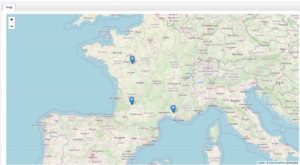
- The iframe homepage displays a map of your station group.
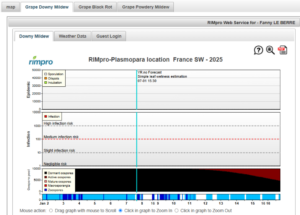
- Clicking on a station opens the selected models in separate tabs.