 Log in
How can I correct or complete my weather data?
To run properly, RIMpro models require a complete and consistent weather dataset.
If you notice missing or incorrect weather data, you have two options:
1) Automatically fill or replace weather data
-
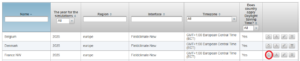
Click on your weather data graph.
-
Select “Automatic correction.”
This tool allows you to either replace incorrect weather data or fill gaps in your dataset.
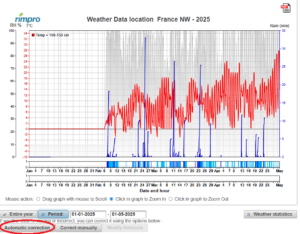
Step 1 — Select a time period
-
To correct only part of the data, choose a start date and end date.
-
To correct all missing or incorrect data, leave the fields unchanged.
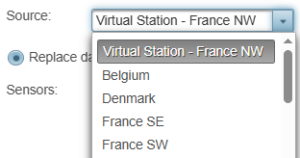
Step 2 — Select a data source
-
To use virtual weather data, select “Virtual Station.”
-
To use data from one of your own weather stations, choose it from the list.
Step 3 — Select the sensors
You can choose between two modes:
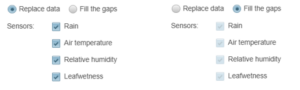
a) Replace incorrect data
Use this option when your station recorded wrong values but still sent data.
Tick only the sensors you want to replace.
Example: If only relative humidity is incorrect, choose “replace data” and tick “relative humidity.”
b) Fill gaps
Use this option when your station did not send any data at all during a period.
The system will automatically fill all gaps using the data source you selected.
2) Manually correct weather data
-
Click on your weather data graph.
-
Select “Correct manually.”
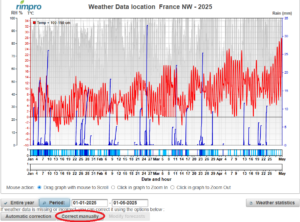
This tool is particularly useful for:
-
correcting rain quantities for virtual stations,
-
adjusting rainfall after testing your rain gauge at the beginning of the season,
-
fixing isolated incorrect values.
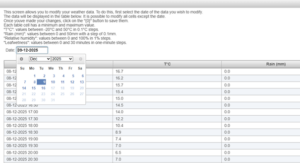
By default, the manual correction tool displays data from the last 24 hours, but you can change the date range using the calendar.
Edit the values directly in the table (temperature, rainfall, relative humidity, leaf wetness) and click “Save changes.”
3) Modify the weather forecast
If you want to adjust the weather forecast, you can use the “Modify forecast” button.
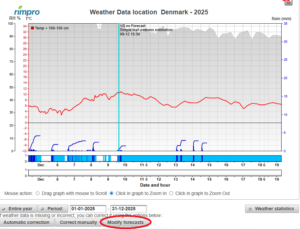
Click directly in the table cells to change the values you need (rain, leaf wetness, temperature, etc.), then click “Save changes.”
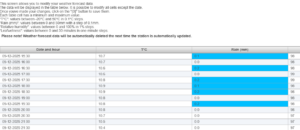
After saving, you can open the pest and disease models to see how your modified forecast affects the predicted risks.
Important notes:
-
Modified forecast data will be automatically overwritten the next time your station updates.
-
Currently, only YR forecasts can be modified.
Forecasts provided by Meteoblue cannot be edited.
How to track your corrections
After applying automatic or manual corrections, the modified periods appear in orange in the status bar below the graph.
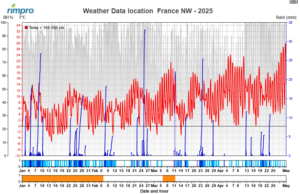
How to remove all corrections
If you want to reset your entire weather dataset:
Go to
Administration → Location
and click “Delete and reimport all data” in the last column.
This will remove all previously applied corrections.